Blog

Blog

Organic Traffic Google Analytics: Boost Your Site's Reach

Organic Traffic Google Analytics: Boost Your Site's Reach

Blog

Organic Traffic Google Analytics: Boost Your Site's Reach

When someone types a question into Google and clicks on a link to your site, that's organic traffic. These aren't just random visitors; they're people with a specific need or question, actively looking for the answers you might have. This high-intent traffic is the lifeblood of sustainable, long-term growth.

Why You Can't Ignore Your Organic Traffic Reports

Watching your organic traffic number climb is great, but the real magic happens when you dig into why it's climbing. Unlike paid ads that vanish the moment you stop paying, a strong organic presence is an asset that builds on itself over time. Every well-optimized article or landing page becomes a long-term magnet for new, interested visitors.

This is exactly why getting comfortable with your organic traffic Google Analytics reports is a non-negotiable skill. It's the difference between passively watching numbers and actively making strategic moves that grow your business. Analyzing this data gives you a direct window into your audience's mind.

Turning Raw Data into Smart Decisions

The insights hiding in your GA4 reports aren't just trivia; they're a concrete roadmap for what to do next. Think of these reports as a direct feedback loop from your target audience. They're telling you exactly what content they love, what topics they're hungry for, and where you might have some technical SEO hiccups holding you back.

With this data-driven approach, you can finally:

  • Pinpoint which blog posts or landing pages are your heavy hitters, attracting the most valuable search traffic.

  • See what people actually do once they land on your site, which tells you a lot about how engaged they are.

  • Connect the dots between search queries and page performance, so you can double down on what’s already working.

The sheer scale of this channel is hard to overstate. Some projections show organic search driving as much as 53% of all website traffic by 2025. Even more telling, the top organic result on a search page gets about 19 times more clicks than the top paid ad. If you want to dive deeper, you can read more about these organic traffic growth statistics to grasp the full potential.

Ultimately, mastering your organic traffic in Google Analytics is how you build a predictable, scalable growth engine. It ensures you're putting your time and money into creating content that genuinely serves your audience and delivers real, measurable results.

Setting Up GA4 for Meaningful SEO Insights

If you want to pull accurate organic traffic reports from Google Analytics, you have to start with a clean setup. It's that simple. Without a solid foundation, every report you generate could be slightly off, pointing your entire SEO strategy in the wrong direction. The whole point is to see what real users are doing, not what your internal team or random bots are up to.

The absolute first thing you need to do—and this is non-negotiable for serious SEO—is to link your Google Search Console (GSC) account with your GA4 property. Think of it this way: GA4 shows you what people do once they're on your site, but GSC reveals how they got there in the first place, including the actual search queries they used. Without that link, you’re flying blind.

This is the fundamental workflow we're aiming for: moving from attracting the right people to analyzing their behavior and then using that data to make smarter decisions.
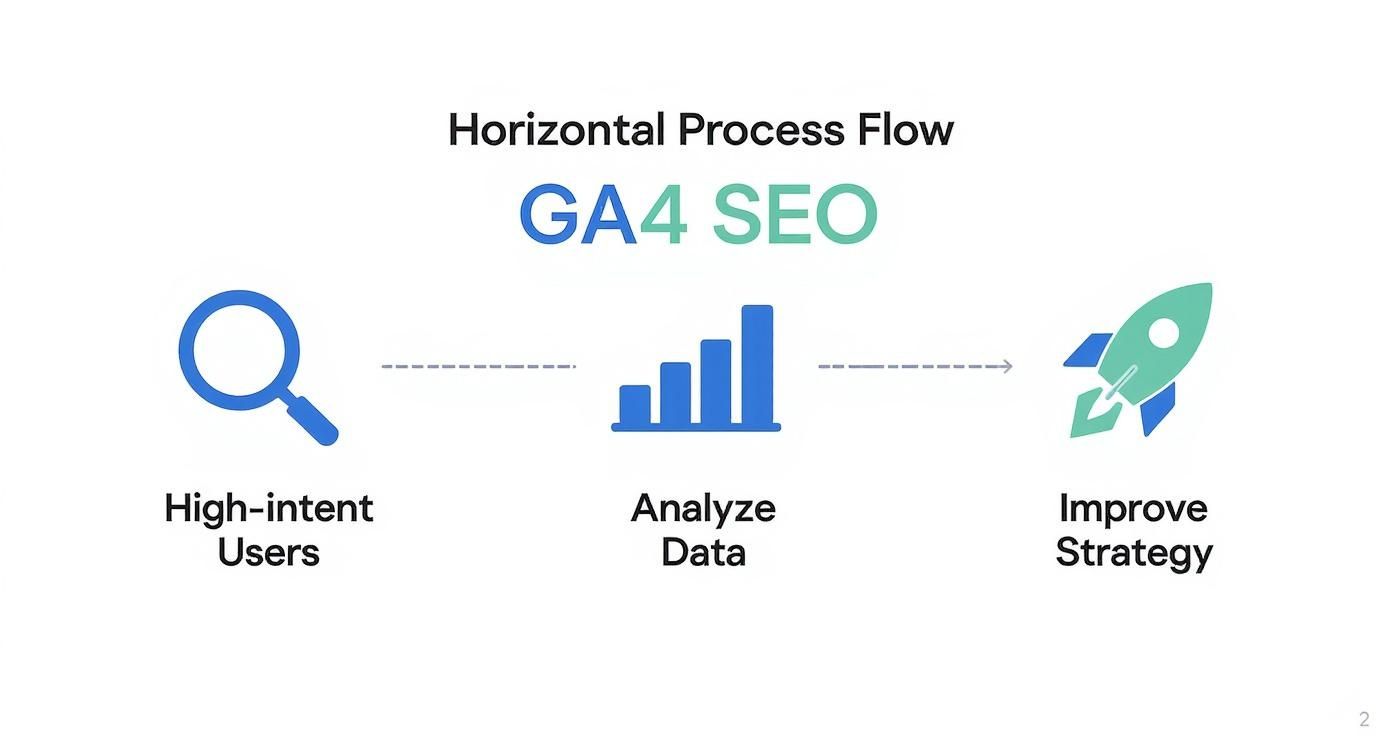
Infographic about organic traffic google analytics

As you can see, it all starts with identifying high-intent users and ends with strategic improvements backed by solid data.

Keeping Your Data Clean

With GSC connected, your next job is data hygiene. It’s amazing how much your own team's activity—clicking around the site, testing new features, proofreading content—can inflate metrics like sessions and pageviews. This skews your perception of genuine user engagement, so filtering out that internal traffic is a must.

The easiest way to do this is by setting up a data filter in your GA4 admin panel. You can create a rule to exclude all traffic coming from your office IP addresses. It’s a simple but powerful action that stops your own clicks from muddying the waters. While you're there, make sure GA4's built-in option to exclude known bot and spider traffic is enabled. It usually is by default, but it's always worth a double-check.

A clean dataset is everything. When you filter out internal and bot traffic, you can trust that the organic traffic in Google Analytics represents actual potential customers, not just background noise.

Given that over 14.8 million websites now use GA4, getting this configuration right gives you a real leg up. You can dig into more GA4 adoption statistics to see just how widespread the platform has become.

Defining What "Organic" Really Means

Finally, it's a good idea to spend a few minutes reviewing your channel groupings. GA4 is pretty good at recognizing traffic from major players like Google and Bing, but what about smaller, niche, or regional search engines? Sometimes, that traffic gets mislabeled as 'Referral,' which throws your reports off.

By creating custom channel groups, you can ensure every last organic visitor is counted correctly. For instance, maybe a popular industry-specific forum has a search function that sends you valuable, targeted traffic. You can build a custom rule to correctly classify that source as organic.

Getting this level of detail right helps you understand the complete picture of your keyword performance across all organic channels. This directly feeds back into your content strategy and helps you decide where to focus your efforts. If you're looking for more guidance on that, our article on how many keywords to target per page is a great next step.

Finding Actionable SEO Insights in GA4 Reports

https://www.youtube.com/embed/JRhvZQz99WE

Jumping into Google Analytics 4 can feel like sitting in an airplane cockpit for the first time—there are dials, switches, and reports everywhere. It's easy to get overwhelmed. But once you know which levers to pull, you can quickly pull some seriously powerful insights about your organic traffic.

The trick is knowing exactly where to look.

Your first stop should always be the Traffic acquisition report. Think of this as your 30,00-foot view of where all your website visitors are coming from, automatically organized by Google into channel groupings.

This is where you'll find the "Organic Search" channel, which conveniently bundles together traffic from search engines like Google, Bing, and DuckDuckGo. Clicking into this channel isolates your SEO performance, showing you crucial metrics like users, sessions, engaged sessions, and conversions. It’s the perfect launchpad for gauging the overall health of your SEO strategy.

Identify Your SEO Powerhouses

After you get a feel for your overall organic performance, the next logical question is, "Which specific pages are driving all this traffic?" This is where the Landing page report becomes your best friend.

By applying a simple filter to this report to show only sessions from Organic Search, you can instantly see which URLs are the front doors for your search visitors.

This perspective is incredibly valuable for a few reasons:

  • Your Top Performers: You can quickly pinpoint the top 5-10 pages that form the foundation of your SEO success. These are the assets you need to protect, keep updated, and build more internal links to.

  • The Underperformers: You might notice pages you thought would do well but are barely getting any traffic from search. This is a clear sign that a page needs a content refresh, better on-page SEO, or a stronger backlink profile.

  • Hidden Gems: Sometimes you'll spot a page with a sky-high engagement rate but very low traffic. This means the content is resonating deeply with the few people who find it. Your job is to figure out how to get it in front of a much bigger audience.

Connecting Queries to Behavior

The real magic happens when you connect what people search for with what they do once they land on your site. For this, you’ll lean on the integrated Google Search Console reports right inside GA4. This is the only place you can see the actual search terms that brought users to you.

This report lets you go beyond just clicks and impressions from search and ties those queries directly to on-site behavior.

Looking at this data, you can uncover which keywords are actually driving the most engaged, high-value traffic. This insight is pure gold for refining your content strategy.

For instance, you might discover that visitors arriving from long-tail keywords have a much higher conversion rate than those from broader terms. If you want to lean into that, our guide on effective long-tail keyword research can show you exactly how to find more of these high-intent phrases.

By regularly reviewing these three core reports—Traffic acquisition, Landing page, and Search Console queries—you create a powerful feedback loop. You move from simply tracking organic traffic in Google Analytics to truly understanding user intent, refining your content, and making data-backed decisions that drive real growth.

Using Custom Segments to Uncover SEO Opportunities
A person pointing at charts and graphs on a computer screen, illustrating data analysis

The standard reports in Google Analytics are great for a quick look, but they don't tell you the whole story. They show you what happened, but to get to the why—the stuff that actually drives your SEO strategy forward—you need to get comfortable with custom segments.

Think of segments as specialized lenses. Instead of staring at all your organic traffic Google Analytics data in one big, messy pile, you can isolate specific groups of people or behaviors. This is where you move from basic reporting to genuine analysis.

What if you could compare organic visitors who landed on your blog from a phone versus those who landed on a service page from a desktop? Or see just the new users who came from non-branded searches? This is the kind of specific, actionable insight that segmentation unlocks.

Start by Filtering Out Your Brand Name

One of the first and most powerful segments I recommend building is one that excludes your branded search traffic. This is your reality check. It shows you how well you're attracting people who don't already know who you are—the true measure of your content and SEO performance.

Branded search is important, of course, but it’s often driven by other marketing efforts. Non-branded search, on the other hand, is earned purely through your content's relevance and authority on a given topic. This is your new audience.

To do this, you'll build a segment that excludes sessions where the search query (pulled from your linked Search Console) contains your brand name and its common variations.

By isolating non-branded traffic, you get an unfiltered view of your content's ability to attract a fresh audience. This is the clearest indicator of your topic authority and reach beyond your existing brand recognition.

Once you have this "Non-Branded Organic" segment, compare it to your total organic traffic. The patterns can be eye-opening. You might find that your blog is responsible for 90% of your non-branded traffic, which immediately proves its value as a top-of-funnel workhorse for your business.

Layer Conditions to Find the Gold

The real magic happens when you start combining different conditions. Don't just look at organic visitors. Look at organic visitors from a specific country, who used a particular device, and then took a meaningful action on your site. This is how you uncover the hidden user journeys that lead to conversions.

Let's say you're running a SaaS business. You could build a segment for:

  • Users whose first touch was Organic Search.

  • And their Device was Desktop.

  • And they triggered a generate_lead event.

Now, apply that segment to your Landing Pages report. You might suddenly see that one of your older blog posts is converting desktop users at a ridiculously high rate. That’s pure gold. It’s a direct signal from your data telling you to promote that post, create more content around that specific topic, and make sure the on-page experience is perfect.

You're no longer guessing; you're making strategic decisions backed by clear evidence.

Practical Segment Ideas for Organic Traffic

To get you started, here are a few custom segment examples to build in GA4 that can reveal deeper insights about your organic audience.

Segment Goal

How to Build It in GA4

The Insight You'll Gain

Find High-Intent Blog Readers

First user medium = organic AND Event count > 1 for view_item (product/service page view)

Identifies which blog posts are successfully moving readers from informational content to commercial pages.

Isolate Mobile-Only Searchers

First user medium = organic AND Device category = mobile AND Session count = 1

Helps you understand the first-time experience for mobile users. Are they bouncing or engaging?

Identify Top-Performing Countries

First user medium = organic AND Country = [Your Target Country] AND Event name = purchase

Shows which international markets are driving the most revenue from organic search, guiding your localization efforts.

Analyze Non-Branded Conversions

First user medium = organic AND Session source / medium does not contain [Your Brand] AND Event name = form_submission

Reveals which keywords and content topics are attracting and converting a completely new audience.

Building and saving these kinds of segments creates a personalized toolkit for ongoing analysis. You can quickly apply them to any report to get the answers you need, turning GA4 into a much more powerful strategic tool.

Diagnosing and Fixing Organic Traffic Drops

A line graph on a computer screen showing a sharp downward trend, indicating a drop in traffic.

It’s a feeling every SEO and marketer knows well: you log into your organic traffic Google Analytics reports and your stomach drops. The chart shows a steep, sudden nosedive. The first instinct is usually panic, but the best thing you can do is take a breath and approach it like a detective.

Don't immediately assume the worst. A traffic dip isn't always a disaster. It could be something as simple as a tracking glitch or even just a seasonal lull. The key is to have a process for digging into the data with GA4 and Google Search Console to figure out what's really going on.

Start broad and then narrow your focus. By systematically ruling things out, you can get to the root cause without chasing phantom problems.

Your Initial Investigation Checklist

Before you start tearing apart your technical SEO, run through a quick, high-level diagnostic. This is all about ruling out the obvious and understanding the scale of the drop. More often than not, the answer is hiding in one of these first few checks.

A great starting point is to compare your traffic to the same period last year—this helps you spot if it's just a normal seasonal trend. Also, check your GA4 annotations. Did the traffic fall off right after a major site update, a redesign, or a big content migration?

Here's a quick framework to get you started:

  • Algorithm Updates: The first thing I do is check SEO news sites and social media. If a major Google algorithm update just hit, your drop might be part of a much bigger shuffle across the web.

  • Manual Actions: This is a big one. Head straight to your Google Search Console account. A manual action is a direct penalty from Google, and it will cause an immediate, catastrophic traffic loss. If the drop was sudden and severe, this should be your first port of call.

  • Indexing & Crawl Issues: While you're in Search Console, take a look at the Coverage and Crawl Stats reports. A big spike in crawl errors or a sudden drop in your indexed pages is a massive red flag pointing to a serious technical problem.

Remember, this first phase isn't about finding the fix. It's about getting an accurate diagnosis. If you misidentify the cause, you'll waste time and energy on "solutions" that do absolutely nothing.

Pinpointing the Source of the Leak

Okay, so you've ruled out site-wide penalties and major technical meltdowns. Now it's time to get granular. Use the comparison feature in GA4 to look at your traffic before and after the drop started. Did traffic fall across the board, or was it concentrated on a specific part of your site?

For instance, you might find that only your blog posts took a hit, or maybe traffic from mobile devices cratered while desktop stayed steady. Getting this level of detail is what turns a vague problem into an actionable one. If the drop is isolated to just a handful of your most important landing pages, you know exactly where to focus your recovery efforts.

By segmenting your organic traffic in Google Analytics, you might find the drop was limited to a specific country or a single subdirectory of your site. Our local SEO checklist provides a solid framework you can adapt for page-level audits, ensuring you don't miss anything. This is how you move from panic mode to a focused plan for getting your traffic back on track.

Got Questions About GA4 and SEO? We’ve Got Answers.

Let's be honest, getting your head around Google Analytics 4 can feel like a full-time job, especially when you're trying to figure out what it all means for your SEO efforts. It's a beast of a tool, and not everything is as straightforward as it was in the old days of Universal Analytics.

I get these questions all the time, so I’ve pulled together some of the most common ones. My goal is to give you clear, no-fluff answers so you can get back to what you do best: making smart decisions based on solid data.

Can I Still See Keyword Data in GA4?

This is probably the number one question I hear. The short answer is yes, but there's a catch. GA4 doesn't collect organic keyword data on its own.

To see which search terms are bringing people to your site, you absolutely must link your Google Search Console (GSC) account to your GA4 property. Once you do that, you unlock the GSC reports right inside GA4, including the all-important Queries report. This is your new home for keyword data.

Why Is Some of My Organic Traffic Showing Up as Referral?

Ever looked at your reports and seen traffic from DuckDuckGo or another search engine lumped in with "Referral" traffic? It’s a common and frustrating issue. It happens because GA4’s standard channel definitions don't recognize every single search engine out there.

The fix is to create a custom channel group. Head into the Admin section, find your channel group settings, and add a new rule. For example, you can tell GA4 that any traffic where the Source is duckduckgo.com should be classified as Organic Search.

Taking a few minutes to clean up your channel groupings is a vital bit of data hygiene. It ensures your organic traffic gets the credit it deserves, giving you a much truer picture of your SEO performance without needing to clean up your data every time you export it.

What's the Real Difference Between Users and Sessions?

These two metrics are the bedrock of analytics, but they're often confused. Getting them straight is critical for any meaningful analysis.

  • Users are the unique people who visit your site. GA4 does its best to identify an individual, even if they visit multiple times from different devices.

  • Sessions are the visits themselves. One person can be responsible for many sessions. A visit officially starts when they land on your site and ends after 30 minutes of them not doing anything.

So, if someone pops onto your blog in the morning and then comes back that afternoon, GA4 will count that as 1 user and 2 sessions.

What Happened to Bounce Rate in GA4?

Google ditched the classic "Bounce Rate" metric, and for good reason. It was always a bit flawed. Think about it: someone could land on your article, find exactly what they needed in 45 seconds, and leave happy. Universal Analytics would have called that a "bounce," painting a negative picture.

GA4 replaced it with something far more insightful: Engagement Rate.

An "engaged session" is a visit that meets at least one of these criteria:

  • Lasts longer than 10 seconds

  • Includes a conversion event

  • Involves at least two pageviews

Engagement Rate is simply the percentage of your total sessions that were "engaged." It's a much better way to gauge if your content is actually connecting with your audience, making it a far more valuable metric for SEOs.

Ready to stop guessing and start building a content strategy that drives results? Viral SEO gives you the tools to analyze your competitors, find high-impact content gaps, and optimize your pages with confidence. Replace scattered spreadsheets and manual research with a streamlined workflow designed for growth. Start making smarter SEO decisions today at https://getviralseo.com.

When someone types a question into Google and clicks on a link to your site, that's organic traffic. These aren't just random visitors; they're people with a specific need or question, actively looking for the answers you might have. This high-intent traffic is the lifeblood of sustainable, long-term growth.

Why You Can't Ignore Your Organic Traffic Reports

Watching your organic traffic number climb is great, but the real magic happens when you dig into why it's climbing. Unlike paid ads that vanish the moment you stop paying, a strong organic presence is an asset that builds on itself over time. Every well-optimized article or landing page becomes a long-term magnet for new, interested visitors.

This is exactly why getting comfortable with your organic traffic Google Analytics reports is a non-negotiable skill. It's the difference between passively watching numbers and actively making strategic moves that grow your business. Analyzing this data gives you a direct window into your audience's mind.

Turning Raw Data into Smart Decisions

The insights hiding in your GA4 reports aren't just trivia; they're a concrete roadmap for what to do next. Think of these reports as a direct feedback loop from your target audience. They're telling you exactly what content they love, what topics they're hungry for, and where you might have some technical SEO hiccups holding you back.

With this data-driven approach, you can finally:

  • Pinpoint which blog posts or landing pages are your heavy hitters, attracting the most valuable search traffic.

  • See what people actually do once they land on your site, which tells you a lot about how engaged they are.

  • Connect the dots between search queries and page performance, so you can double down on what’s already working.

The sheer scale of this channel is hard to overstate. Some projections show organic search driving as much as 53% of all website traffic by 2025. Even more telling, the top organic result on a search page gets about 19 times more clicks than the top paid ad. If you want to dive deeper, you can read more about these organic traffic growth statistics to grasp the full potential.

Ultimately, mastering your organic traffic in Google Analytics is how you build a predictable, scalable growth engine. It ensures you're putting your time and money into creating content that genuinely serves your audience and delivers real, measurable results.

Setting Up GA4 for Meaningful SEO Insights

If you want to pull accurate organic traffic reports from Google Analytics, you have to start with a clean setup. It's that simple. Without a solid foundation, every report you generate could be slightly off, pointing your entire SEO strategy in the wrong direction. The whole point is to see what real users are doing, not what your internal team or random bots are up to.

The absolute first thing you need to do—and this is non-negotiable for serious SEO—is to link your Google Search Console (GSC) account with your GA4 property. Think of it this way: GA4 shows you what people do once they're on your site, but GSC reveals how they got there in the first place, including the actual search queries they used. Without that link, you’re flying blind.

This is the fundamental workflow we're aiming for: moving from attracting the right people to analyzing their behavior and then using that data to make smarter decisions.

Infographic about organic traffic google analytics

As you can see, it all starts with identifying high-intent users and ends with strategic improvements backed by solid data.

Keeping Your Data Clean

With GSC connected, your next job is data hygiene. It’s amazing how much your own team's activity—clicking around the site, testing new features, proofreading content—can inflate metrics like sessions and pageviews. This skews your perception of genuine user engagement, so filtering out that internal traffic is a must.

The easiest way to do this is by setting up a data filter in your GA4 admin panel. You can create a rule to exclude all traffic coming from your office IP addresses. It’s a simple but powerful action that stops your own clicks from muddying the waters. While you're there, make sure GA4's built-in option to exclude known bot and spider traffic is enabled. It usually is by default, but it's always worth a double-check.

A clean dataset is everything. When you filter out internal and bot traffic, you can trust that the organic traffic in Google Analytics represents actual potential customers, not just background noise.

Given that over 14.8 million websites now use GA4, getting this configuration right gives you a real leg up. You can dig into more GA4 adoption statistics to see just how widespread the platform has become.

Defining What "Organic" Really Means

Finally, it's a good idea to spend a few minutes reviewing your channel groupings. GA4 is pretty good at recognizing traffic from major players like Google and Bing, but what about smaller, niche, or regional search engines? Sometimes, that traffic gets mislabeled as 'Referral,' which throws your reports off.

By creating custom channel groups, you can ensure every last organic visitor is counted correctly. For instance, maybe a popular industry-specific forum has a search function that sends you valuable, targeted traffic. You can build a custom rule to correctly classify that source as organic.

Getting this level of detail right helps you understand the complete picture of your keyword performance across all organic channels. This directly feeds back into your content strategy and helps you decide where to focus your efforts. If you're looking for more guidance on that, our article on how many keywords to target per page is a great next step.

Finding Actionable SEO Insights in GA4 Reports

https://www.youtube.com/embed/JRhvZQz99WE

Jumping into Google Analytics 4 can feel like sitting in an airplane cockpit for the first time—there are dials, switches, and reports everywhere. It's easy to get overwhelmed. But once you know which levers to pull, you can quickly pull some seriously powerful insights about your organic traffic.

The trick is knowing exactly where to look.

Your first stop should always be the Traffic acquisition report. Think of this as your 30,00-foot view of where all your website visitors are coming from, automatically organized by Google into channel groupings.

This is where you'll find the "Organic Search" channel, which conveniently bundles together traffic from search engines like Google, Bing, and DuckDuckGo. Clicking into this channel isolates your SEO performance, showing you crucial metrics like users, sessions, engaged sessions, and conversions. It’s the perfect launchpad for gauging the overall health of your SEO strategy.

Identify Your SEO Powerhouses

After you get a feel for your overall organic performance, the next logical question is, "Which specific pages are driving all this traffic?" This is where the Landing page report becomes your best friend.

By applying a simple filter to this report to show only sessions from Organic Search, you can instantly see which URLs are the front doors for your search visitors.

This perspective is incredibly valuable for a few reasons:

  • Your Top Performers: You can quickly pinpoint the top 5-10 pages that form the foundation of your SEO success. These are the assets you need to protect, keep updated, and build more internal links to.

  • The Underperformers: You might notice pages you thought would do well but are barely getting any traffic from search. This is a clear sign that a page needs a content refresh, better on-page SEO, or a stronger backlink profile.

  • Hidden Gems: Sometimes you'll spot a page with a sky-high engagement rate but very low traffic. This means the content is resonating deeply with the few people who find it. Your job is to figure out how to get it in front of a much bigger audience.

Connecting Queries to Behavior

The real magic happens when you connect what people search for with what they do once they land on your site. For this, you’ll lean on the integrated Google Search Console reports right inside GA4. This is the only place you can see the actual search terms that brought users to you.

This report lets you go beyond just clicks and impressions from search and ties those queries directly to on-site behavior.

Looking at this data, you can uncover which keywords are actually driving the most engaged, high-value traffic. This insight is pure gold for refining your content strategy.

For instance, you might discover that visitors arriving from long-tail keywords have a much higher conversion rate than those from broader terms. If you want to lean into that, our guide on effective long-tail keyword research can show you exactly how to find more of these high-intent phrases.

By regularly reviewing these three core reports—Traffic acquisition, Landing page, and Search Console queries—you create a powerful feedback loop. You move from simply tracking organic traffic in Google Analytics to truly understanding user intent, refining your content, and making data-backed decisions that drive real growth.

Using Custom Segments to Uncover SEO Opportunities

A person pointing at charts and graphs on a computer screen, illustrating data analysis

The standard reports in Google Analytics are great for a quick look, but they don't tell you the whole story. They show you what happened, but to get to the why—the stuff that actually drives your SEO strategy forward—you need to get comfortable with custom segments.

Think of segments as specialized lenses. Instead of staring at all your organic traffic Google Analytics data in one big, messy pile, you can isolate specific groups of people or behaviors. This is where you move from basic reporting to genuine analysis.

What if you could compare organic visitors who landed on your blog from a phone versus those who landed on a service page from a desktop? Or see just the new users who came from non-branded searches? This is the kind of specific, actionable insight that segmentation unlocks.

Start by Filtering Out Your Brand Name

One of the first and most powerful segments I recommend building is one that excludes your branded search traffic. This is your reality check. It shows you how well you're attracting people who don't already know who you are—the true measure of your content and SEO performance.

Branded search is important, of course, but it’s often driven by other marketing efforts. Non-branded search, on the other hand, is earned purely through your content's relevance and authority on a given topic. This is your new audience.

To do this, you'll build a segment that excludes sessions where the search query (pulled from your linked Search Console) contains your brand name and its common variations.

By isolating non-branded traffic, you get an unfiltered view of your content's ability to attract a fresh audience. This is the clearest indicator of your topic authority and reach beyond your existing brand recognition.

Once you have this "Non-Branded Organic" segment, compare it to your total organic traffic. The patterns can be eye-opening. You might find that your blog is responsible for 90% of your non-branded traffic, which immediately proves its value as a top-of-funnel workhorse for your business.

Layer Conditions to Find the Gold

The real magic happens when you start combining different conditions. Don't just look at organic visitors. Look at organic visitors from a specific country, who used a particular device, and then took a meaningful action on your site. This is how you uncover the hidden user journeys that lead to conversions.

Let's say you're running a SaaS business. You could build a segment for:

  • Users whose first touch was Organic Search.

  • And their Device was Desktop.

  • And they triggered a generate_lead event.

Now, apply that segment to your Landing Pages report. You might suddenly see that one of your older blog posts is converting desktop users at a ridiculously high rate. That’s pure gold. It’s a direct signal from your data telling you to promote that post, create more content around that specific topic, and make sure the on-page experience is perfect.

You're no longer guessing; you're making strategic decisions backed by clear evidence.

Practical Segment Ideas for Organic Traffic

To get you started, here are a few custom segment examples to build in GA4 that can reveal deeper insights about your organic audience.

Segment Goal

How to Build It in GA4

The Insight You'll Gain

Find High-Intent Blog Readers

First user medium = organic AND Event count > 1 for view_item (product/service page view)

Identifies which blog posts are successfully moving readers from informational content to commercial pages.

Isolate Mobile-Only Searchers

First user medium = organic AND Device category = mobile AND Session count = 1

Helps you understand the first-time experience for mobile users. Are they bouncing or engaging?

Identify Top-Performing Countries

First user medium = organic AND Country = [Your Target Country] AND Event name = purchase

Shows which international markets are driving the most revenue from organic search, guiding your localization efforts.

Analyze Non-Branded Conversions

First user medium = organic AND Session source / medium does not contain [Your Brand] AND Event name = form_submission

Reveals which keywords and content topics are attracting and converting a completely new audience.

Building and saving these kinds of segments creates a personalized toolkit for ongoing analysis. You can quickly apply them to any report to get the answers you need, turning GA4 into a much more powerful strategic tool.

Diagnosing and Fixing Organic Traffic Drops

A line graph on a computer screen showing a sharp downward trend, indicating a drop in traffic.

It’s a feeling every SEO and marketer knows well: you log into your organic traffic Google Analytics reports and your stomach drops. The chart shows a steep, sudden nosedive. The first instinct is usually panic, but the best thing you can do is take a breath and approach it like a detective.

Don't immediately assume the worst. A traffic dip isn't always a disaster. It could be something as simple as a tracking glitch or even just a seasonal lull. The key is to have a process for digging into the data with GA4 and Google Search Console to figure out what's really going on.

Start broad and then narrow your focus. By systematically ruling things out, you can get to the root cause without chasing phantom problems.

Your Initial Investigation Checklist

Before you start tearing apart your technical SEO, run through a quick, high-level diagnostic. This is all about ruling out the obvious and understanding the scale of the drop. More often than not, the answer is hiding in one of these first few checks.

A great starting point is to compare your traffic to the same period last year—this helps you spot if it's just a normal seasonal trend. Also, check your GA4 annotations. Did the traffic fall off right after a major site update, a redesign, or a big content migration?

Here's a quick framework to get you started:

  • Algorithm Updates: The first thing I do is check SEO news sites and social media. If a major Google algorithm update just hit, your drop might be part of a much bigger shuffle across the web.

  • Manual Actions: This is a big one. Head straight to your Google Search Console account. A manual action is a direct penalty from Google, and it will cause an immediate, catastrophic traffic loss. If the drop was sudden and severe, this should be your first port of call.

  • Indexing & Crawl Issues: While you're in Search Console, take a look at the Coverage and Crawl Stats reports. A big spike in crawl errors or a sudden drop in your indexed pages is a massive red flag pointing to a serious technical problem.

Remember, this first phase isn't about finding the fix. It's about getting an accurate diagnosis. If you misidentify the cause, you'll waste time and energy on "solutions" that do absolutely nothing.

Pinpointing the Source of the Leak

Okay, so you've ruled out site-wide penalties and major technical meltdowns. Now it's time to get granular. Use the comparison feature in GA4 to look at your traffic before and after the drop started. Did traffic fall across the board, or was it concentrated on a specific part of your site?

For instance, you might find that only your blog posts took a hit, or maybe traffic from mobile devices cratered while desktop stayed steady. Getting this level of detail is what turns a vague problem into an actionable one. If the drop is isolated to just a handful of your most important landing pages, you know exactly where to focus your recovery efforts.

By segmenting your organic traffic in Google Analytics, you might find the drop was limited to a specific country or a single subdirectory of your site. Our local SEO checklist provides a solid framework you can adapt for page-level audits, ensuring you don't miss anything. This is how you move from panic mode to a focused plan for getting your traffic back on track.

Got Questions About GA4 and SEO? We’ve Got Answers.

Let's be honest, getting your head around Google Analytics 4 can feel like a full-time job, especially when you're trying to figure out what it all means for your SEO efforts. It's a beast of a tool, and not everything is as straightforward as it was in the old days of Universal Analytics.

I get these questions all the time, so I’ve pulled together some of the most common ones. My goal is to give you clear, no-fluff answers so you can get back to what you do best: making smart decisions based on solid data.

Can I Still See Keyword Data in GA4?

This is probably the number one question I hear. The short answer is yes, but there's a catch. GA4 doesn't collect organic keyword data on its own.

To see which search terms are bringing people to your site, you absolutely must link your Google Search Console (GSC) account to your GA4 property. Once you do that, you unlock the GSC reports right inside GA4, including the all-important Queries report. This is your new home for keyword data.

Why Is Some of My Organic Traffic Showing Up as Referral?

Ever looked at your reports and seen traffic from DuckDuckGo or another search engine lumped in with "Referral" traffic? It’s a common and frustrating issue. It happens because GA4’s standard channel definitions don't recognize every single search engine out there.

The fix is to create a custom channel group. Head into the Admin section, find your channel group settings, and add a new rule. For example, you can tell GA4 that any traffic where the Source is duckduckgo.com should be classified as Organic Search.

Taking a few minutes to clean up your channel groupings is a vital bit of data hygiene. It ensures your organic traffic gets the credit it deserves, giving you a much truer picture of your SEO performance without needing to clean up your data every time you export it.

What's the Real Difference Between Users and Sessions?

These two metrics are the bedrock of analytics, but they're often confused. Getting them straight is critical for any meaningful analysis.

  • Users are the unique people who visit your site. GA4 does its best to identify an individual, even if they visit multiple times from different devices.

  • Sessions are the visits themselves. One person can be responsible for many sessions. A visit officially starts when they land on your site and ends after 30 minutes of them not doing anything.

So, if someone pops onto your blog in the morning and then comes back that afternoon, GA4 will count that as 1 user and 2 sessions.

What Happened to Bounce Rate in GA4?

Google ditched the classic "Bounce Rate" metric, and for good reason. It was always a bit flawed. Think about it: someone could land on your article, find exactly what they needed in 45 seconds, and leave happy. Universal Analytics would have called that a "bounce," painting a negative picture.

GA4 replaced it with something far more insightful: Engagement Rate.

An "engaged session" is a visit that meets at least one of these criteria:

  • Lasts longer than 10 seconds

  • Includes a conversion event

  • Involves at least two pageviews

Engagement Rate is simply the percentage of your total sessions that were "engaged." It's a much better way to gauge if your content is actually connecting with your audience, making it a far more valuable metric for SEOs.

Ready to stop guessing and start building a content strategy that drives results? Viral SEO gives you the tools to analyze your competitors, find high-impact content gaps, and optimize your pages with confidence. Replace scattered spreadsheets and manual research with a streamlined workflow designed for growth. Start making smarter SEO decisions today at https://getviralseo.com.