How to Open a Google My Business Account - Complete Guide 2026
Updated March 2026 | 10 min read | Step-by-Step Instructions
SEO Meta Description Learn how to open a Google My Business account in 2026 with this complete step-by-step guide. Set up your Google Business Profile, verify your listing, and start attracting local customers today. |
Why Your Business Needs Google My Business Right Now
If you're running a local business and you're not on Google My Business (now officially called Google Business Profile), you're invisible to thousands of potential customers searching for exactly what you offer — right now, today, in your city.
Here's the cold, hard truth: 97% of people learn more about a local business online than anywhere else. And Google controls over 92% of the global search market. That means when someone types "plumber near me" or "best Italian restaurant in [city]," your Google Business Profile is the single most powerful tool to get you found.
The best part? Setting up a Google My Business account is completely free. This guide walks you through every single step — from creating your account to fully optimizing it for maximum visibility in 2026.
Quick Win Businesses with complete Google Business Profiles get 7x more clicks than incomplete listings. This takes about 30 minutes to set up. Let's go. |
What Is Google My Business (Google Business Profile) in 2026?
Google rebranded Google My Business to Google Business Profile in 2022 — but most people still call it GMB. Same product, same power. Whatever you call it, it's your free business listing that appears in:
Google Search results (the local "3-pack" map listings)
Google Maps when users search nearby
Google's Knowledge Panel on the right side of search results
Google Shopping and local service ads
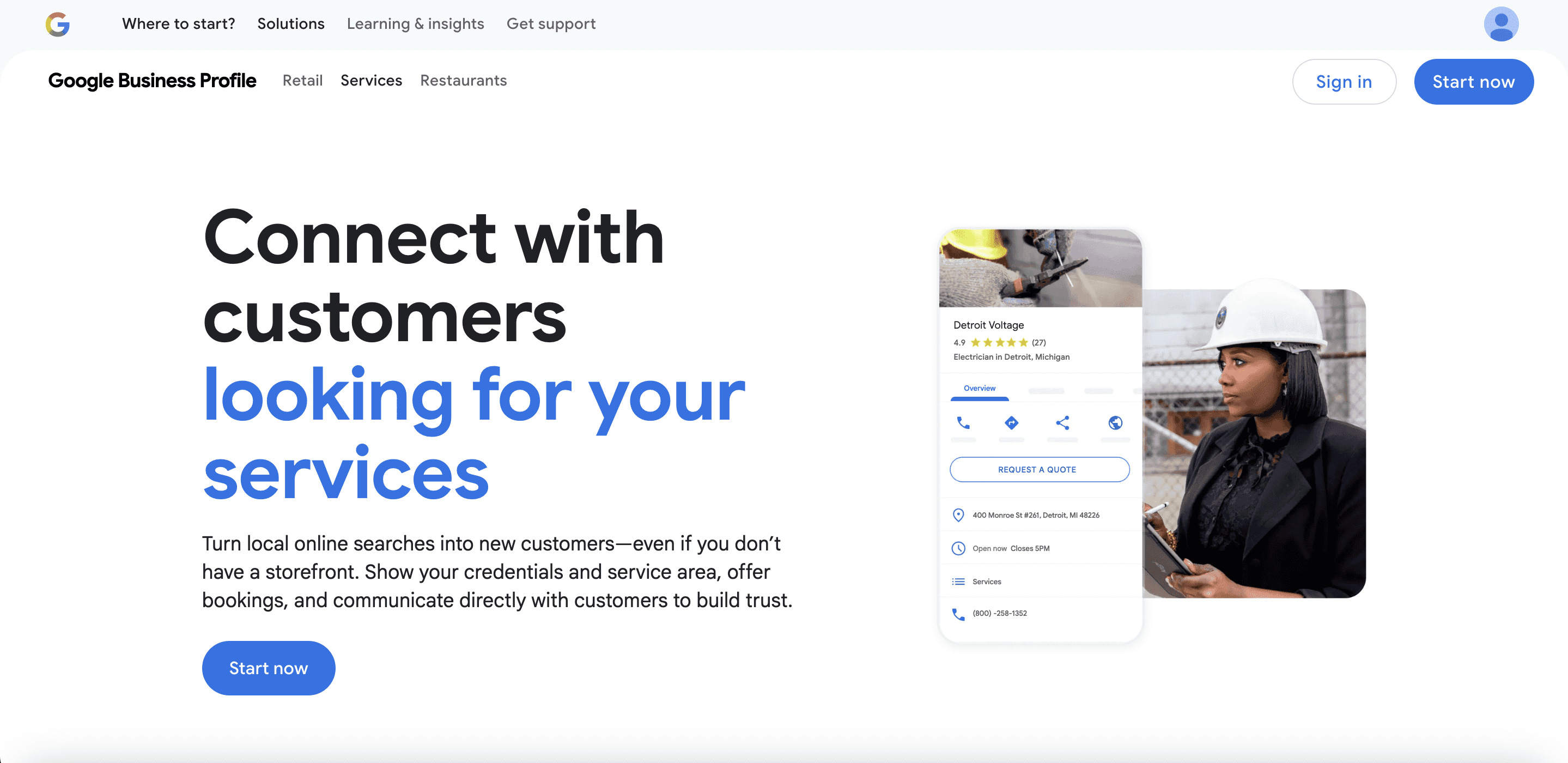
Your profile shows your business name, address, phone number, hours, reviews, photos, website link, and more. It's essentially a mini-website that lives on Google — and it loads instantly for mobile users.
Who Can Create a Google My Business Account?
Google My Business is built for any business that serves customers — either at a physical location or in a service area. You qualify if you are:
A brick-and-mortar store (restaurant, salon, gym, retail shop)
A service-area business (plumber, electrician, landscaper, cleaner)
A hybrid business (you have a location AND travel to customers)
A professional with a private address (you can hide your address)
Important Note Online-only businesses without any in-person customer interaction are NOT eligible for a Google Business Profile according to Google's guidelines. |
What You Need Before You Start
Before diving into the setup process, make sure you have the following ready. This prevents interruptions and gets you live faster.
Checklist: Prerequisites for Setup
A Google account (Gmail). If you don't have one, create it at accounts.google.com first.
Your official business name — exactly as it appears on your storefront or legal documents
Your complete business address (or service area if you're mobile)
A working local phone number for your business
Your business website URL (if you have one)
Your primary business category (e.g., "Italian Restaurant," "HVAC Contractor")
Business hours — regular weekly schedule
Access to a physical address for Google's verification postcard (more on this below)
Pro tip: Have your logo and at least 5–10 high-quality photos of your business ready to upload. You'll want these for the optimization phase right after setup.
Step-by-Step: How to Open a Google My Business Account in 2026
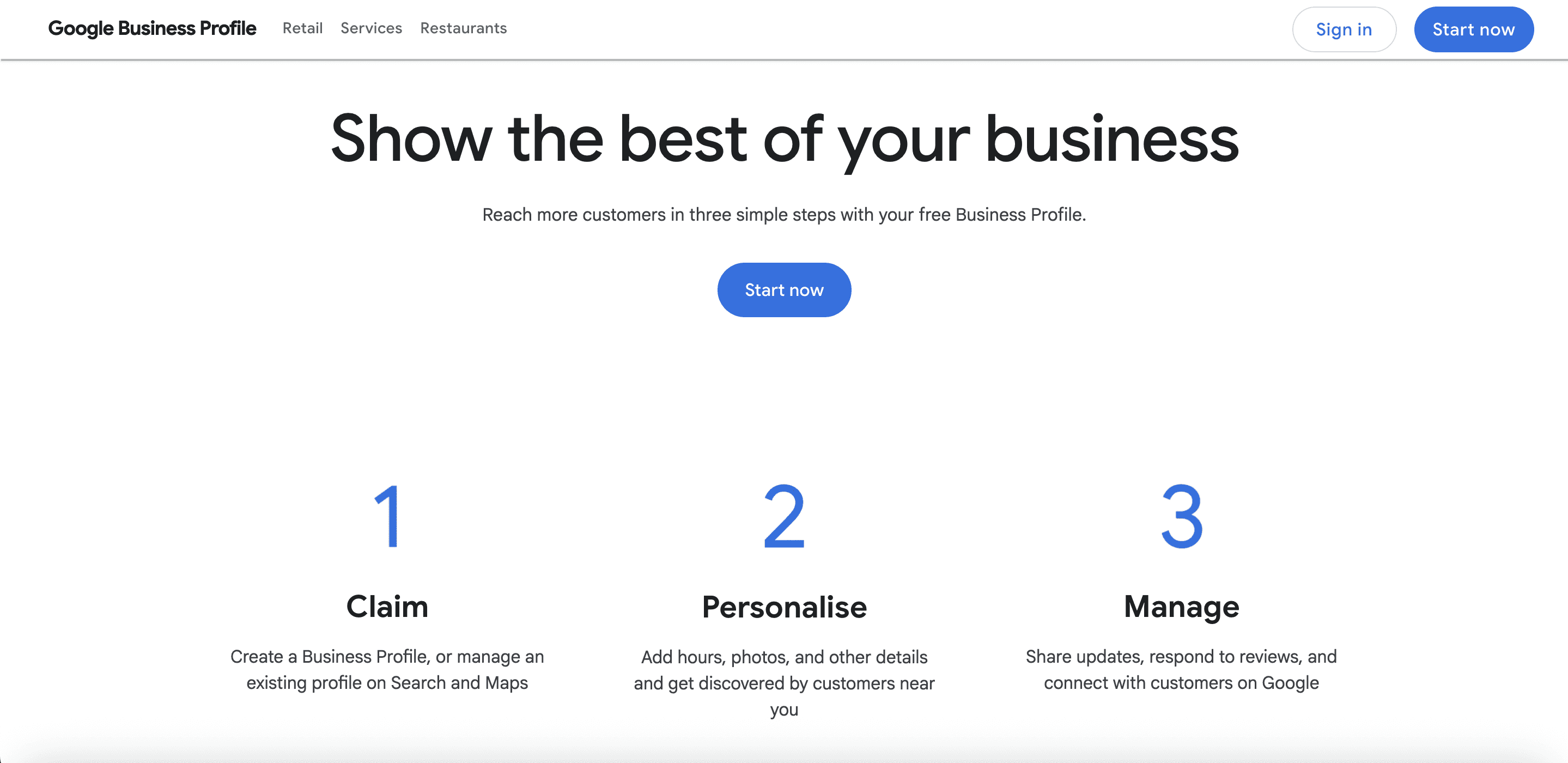
Step 1: Go to Google Business Profile
Open your browser and navigate to business.google.com. Make sure you're already signed into the Google account you want to associate with your business — or sign in when prompted.
Click the blue "Manage now" button in the center of the page. This launches the setup wizard.
Tip Use a dedicated Google account for your business, not a personal Gmail. It looks more professional and keeps things organized, especially if you ever add team members. |
Step 2: Enter Your Business Name
Type your business name in the search field. Google will check whether a listing already exists.
You'll see one of two outcomes:
Your business appears in the dropdown — Click on it to claim the existing listing. This happens often if someone (or Google) created an unverified listing.
No match found — Click "Add your business to Google" and proceed with creating a brand-new listing.
Warning Do NOT create a duplicate listing if one already exists. Duplicates can cause your rankings to split and confuse customers. Always claim first, create second. |
Step 3: Choose Your Business Category
This is one of the most important SEO decisions you'll make. Your primary category tells Google — and customers — what your business does.
Type a keyword that describes your business. Google will suggest relevant categories. Choose the most specific option that accurately describes your core service. Examples:
"Italian Restaurant" instead of just "Restaurant"
"Pediatric Dentist" instead of just "Dentist"
"Commercial Cleaning Service" instead of just "Cleaning Service"
You can add additional (secondary) categories after your profile is live, but your primary category carries the most weight. Choose wisely.
Step 4: Add Your Location
Google will ask: "Do you want to add a location customers can visit, like a store or office?"
Choose YES if:
Customers come to your physical location
You have a storefront, office, clinic, or studio
Choose NO if:
You travel to customers (plumber, dog groomer, delivery service)
You work from home and don't want your address public
If you select YES, enter your complete address. Google will show it on Maps. If you select NO, you'll be prompted to define your service area by city, zip code, or region.
You can do BOTH — have a physical address AND a service area — if your business model supports it.
Step 5: Enter Contact Details
Now add your:
Phone number — Use a local number, not a toll-free one. Local numbers build trust with nearby customers.
Website — If you don't have a website yet, you can skip this for now or use a social media page temporarily.
Make sure your phone number and address match exactly what's on your website and any other online directories (Yelp, Facebook, etc.). This consistency is critical for local SEO — it's called NAP consistency (Name, Address, Phone).
Step 6: Agree to Terms and Proceed to Verification
Review Google's Terms of Service and click "Continue." You'll now reach the verification screen — the final and most critical step to making your profile live.
How to Verify Your Google My Business Account
Verification proves to Google that your business is legitimate and that you're authorized to manage the listing. Until you're verified, your profile won't appear prominently in search results.
Google offers several verification methods in 2026, depending on your business type and location:
Verification Method 1: Postcard by Mail (Most Common)
Google mails a physical postcard to your business address. It contains a 5-digit verification code. Timeline: typically 5–14 business days.
Select "Postcard" as your verification method
Confirm your mailing address
Wait for the postcard to arrive
Sign into business.google.com and click "Verify now"
Enter the 5-digit code from the postcard
Done — your profile is now verified!
Tip Don't make any major changes to your listing (especially name or address) while waiting for your postcard. Changes restart the verification process. |
Verification Method 2: Phone or Text
Some businesses qualify for instant phone verification. Google calls or texts a code to the phone number on your listing. This is the fastest option — verification happens in under 2 minutes.
Verification Method 3: Email
If your Google account email matches your business domain (e.g., you@yourbusiness.com), Google may offer email verification. You'll receive a verification link or code to your inbox.
Verification Method 4: Video Verification
Introduced for higher-risk or sensitive business categories, video verification requires you to record a short video showing your business frontage, interior, and proof of operation (staff, equipment, etc.). Google reviews the video within a few days.
Verification Method 5: Live Video Call
A Google representative joins a live video call with you and verifies your business in real time. You'll show them your location and proof of business during the call.
Instant Verification
If you've already verified your business website with Google Search Console, and the website matches your GMB listing, you may qualify for instant automatic verification. Lucky you.
How to Optimize Your Google Business Profile After Setup
Setup is just the beginning. The businesses that dominate local search aren't just verified — they're fully optimized. Here's what to do immediately after your account is live.
1. Add Complete Business Hours
List your regular hours AND special hours for holidays. Customers hate showing up to a closed business. Google also rewards listings with accurate, updated hours.
2. Write a Keyword-Rich Business Description
You get 750 characters. Use them. Include:
What you do (services/products)
Who you serve
Your location or service area
What makes you different
A soft call-to-action
Naturally weave in keywords like your service type + city. Don't keyword-stuff — write for humans first, Google second.
3. Upload High-Quality Photos
Listings with photos receive 42% more requests for directions and 35% more website clicks. Upload:
Exterior photos (help customers recognize your location)
Interior photos (show ambiance and professionalism)
Team photos (build trust and personality)
Product or service photos
A professional logo
Aim for at least 10 photos minimum. Keep adding new ones regularly — fresh content signals an active business to Google.
4. Add All Relevant Services and Products
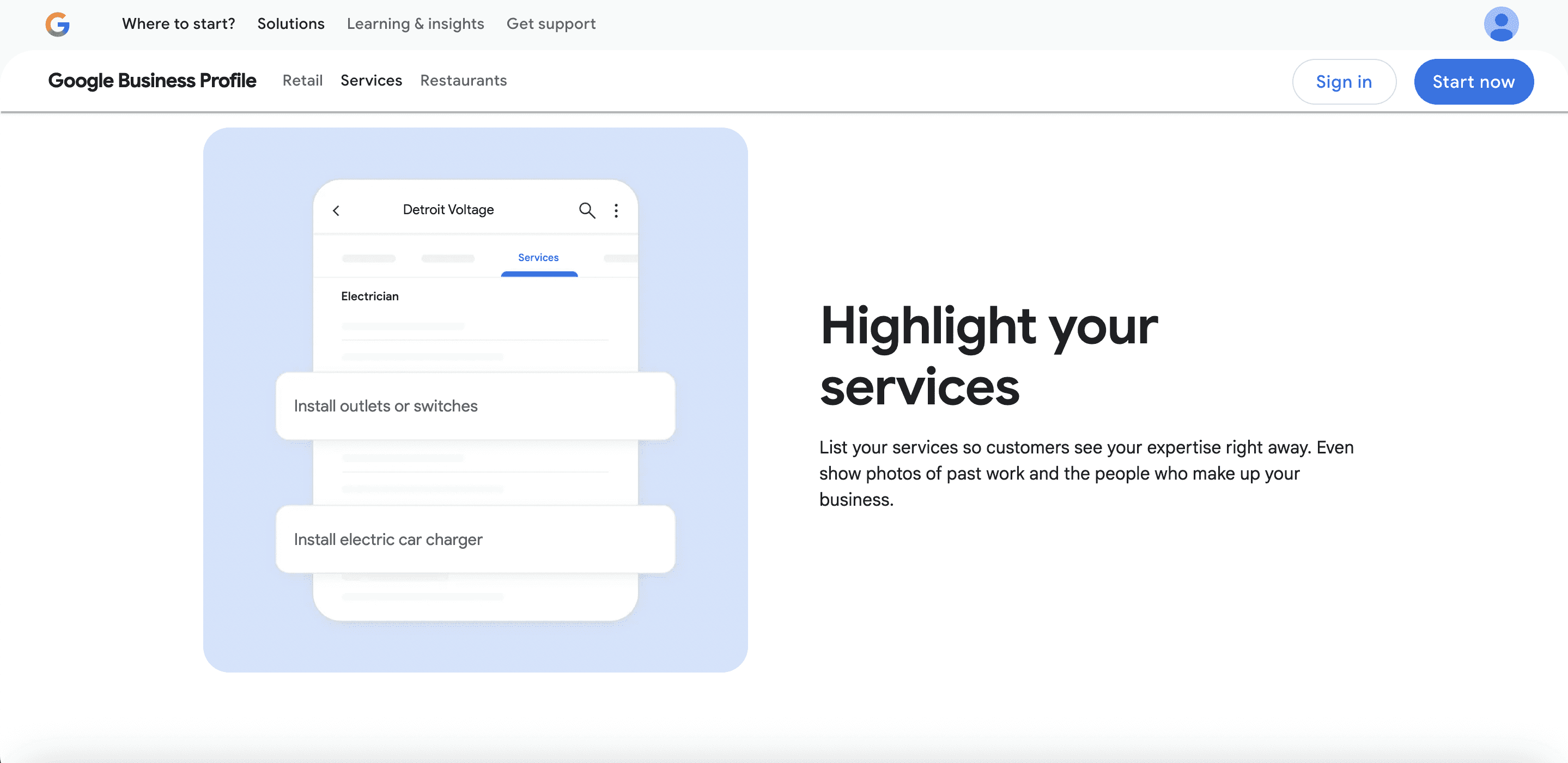
Use the "Services" and "Products" sections to list everything you offer. Include prices if applicable. This content is indexed by Google and helps your listing appear for more search queries.
5. Enable Messaging
Turn on the messaging feature to let customers send you direct messages from your Google listing. Respond within 24 hours — Google penalizes businesses with slow response times.
6. Collect and Respond to Reviews
Reviews are the #1 ranking factor for local SEO. Here's your action plan:
Ask every satisfied customer to leave a Google review
Share your review link (find it in your Business Profile manager)
Respond to EVERY review — positive and negative
Never incentivize reviews (against Google's guidelines)
Flag and report fake or inappropriate reviews
Power Move Set up a short URL for your review page (available in Business Profile settings) and add it to your email signature, receipts, and follow-up texts. This one habit can double your review count in 90 days. |
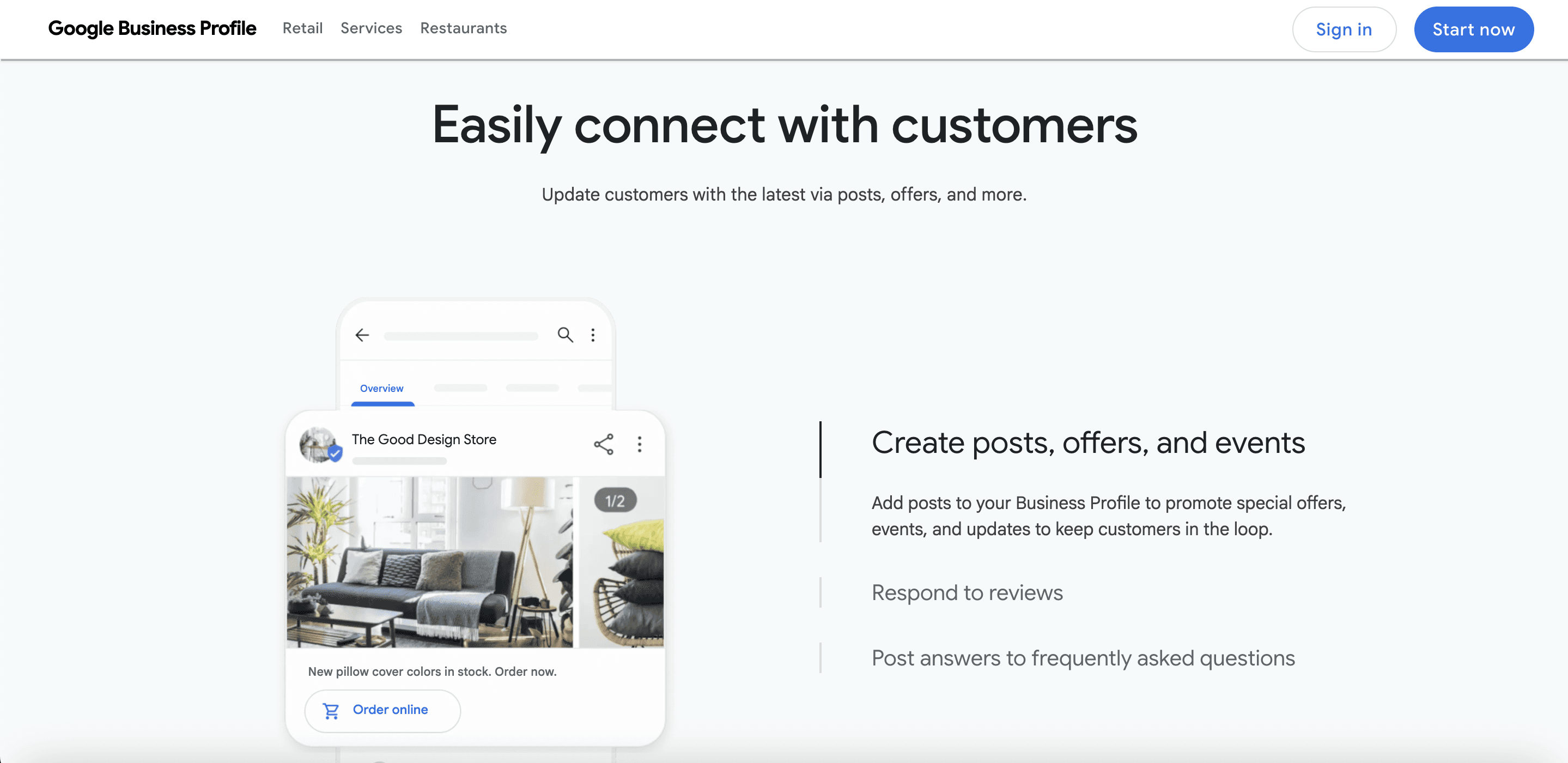
7. Post Regular Updates (Google Posts)
Google Posts are short updates that appear directly on your listing. Use them for:
New products or services
Special offers and promotions
Events (classes, workshops, open days)
Business news and announcements
Post at least once a week. Posts expire after 7 days but show Google that your business is active — which boosts your rankings.
8. Answer Questions in the Q&A Section
Anyone on Google can ask questions about your business publicly. Monitor this section and answer proactively. You can also seed it with FAQs you frequently get from customers. This is an underused goldmine.
Common Google My Business Mistakes to Avoid in 2026
Mistake #1: Inconsistent Business Information
Your business name, address, and phone number (NAP) must be identical across your Google listing, website, Yelp, Facebook, and every other directory. Even tiny differences — "St." vs. "Street" — can hurt your local SEO.
Mistake #2: Keyword Stuffing in Business Name
Don't be tempted to add keywords to your business name field (e.g., "Joe's Plumbing — Best Plumber in Chicago"). This violates Google's guidelines and can result in your listing being suspended.
Mistake #3: Choosing the Wrong Primary Category
Your primary category determines which searches you show up for. Choose the wrong one and you'll be invisible to your best customers. Research competitor listings to see what categories they use.
Mistake #4: Ignoring Reviews
Not responding to reviews — especially negative ones — signals to both Google and customers that you're not engaged. A polite, professional response to a 1-star review can actually win back trust from potential customers reading it.
Mistake #5: Setting and Forgetting
Google My Business is not a one-time task. Businesses that update their profiles regularly (photos, posts, hours, Q&A) consistently outrank dormant listings. Make it a habit.
Mistake #6: Using a P.O. Box or Virtual Office Address
Google's guidelines prohibit P.O. boxes and virtual office addresses that you don't regularly staff. Listings using these can be suspended. Use your real, customer-accessible address.
Managing Your Google My Business Account: Day-to-Day
Use the Google Business Profile App
Download the Google Business Profile app (iOS and Android) to manage your listing on the go. You can respond to reviews, post updates, answer messages, and view insights — all from your phone.
Understanding Your Insights Dashboard
Your Insights tab shows you exactly how customers are finding and interacting with your listing. Key metrics to track:
Search queries — What keywords are triggering your listing
Views — How many times your profile appeared in search and Maps
Actions — Website clicks, direction requests, and phone calls
Photo views — How your photos compare to similar businesses
Review these monthly. If certain queries keep appearing, optimize your description and posts around those keywords.
Add Multiple Users
You can grant access to team members, marketing agencies, or virtual assistants without sharing your login. Go to Business Profile Settings > People and permissions. Choose between Owner, Manager, and Site Manager roles.
Manage Multiple Locations
If you have multiple business locations, use Google Business Profile Manager (business.google.com) to manage all of them from a single dashboard. For businesses with 10+ locations, bulk upload tools are available.
Advanced Tips to Dominate Local Search in 2026
Build Citations Across the Web
A "citation" is any online mention of your business name, address, and phone number. Google cross-references these to confirm your legitimacy. Get listed on Yelp, TripAdvisor, Yellow Pages, Bing Places, Apple Maps, and industry-specific directories. Use Moz Local or BrightLocal to audit and build citations at scale.
Connect Google Ads for Local Campaigns
Link your Google Business Profile to Google Ads to run Local Search Ads — the sponsored listings that appear above the organic map pack. This is a powerful paid strategy to combine with your organic GMB optimization.
Use UTM Parameters on Your Website Link
Add a UTM tracking parameter to your website URL in your GMB listing (e.g., ?utm_source=gmb&utm_medium=organic). This lets you see exactly how much traffic Google My Business is sending to your site in Google Analytics.
Optimize for Voice Search
An increasing number of local searches happen via voice ("Hey Google, find a dentist near me"). Voice search heavily relies on Google Business Profiles for answers. Make sure your hours, phone number, and address are always current — voice assistants pull from this data directly.
Respond to Reviews Within 24 Hours
Google has confirmed that review response rate and speed are signals in its local ranking algorithm. Set up alerts in the Business Profile app so you're notified the moment a review drops.
Frequently Asked Questions
Is Google My Business really free?
Yes, 100% free. Creating, managing, and optimizing a Google Business Profile costs nothing. Google earns money when businesses run paid ads — but the organic listing itself is always free.
How long does Google My Business verification take?
It depends on your method. Phone/email verification takes minutes. Postcard verification takes 5–14 business days. Video verification typically takes 3–5 business days for Google to review.
Can I edit my listing while waiting for verification?
You can make edits, but avoid changing your business name or address while a postcard is in transit — it cancels the current verification and restarts the process.
What if my business is suspended?
Google suspends listings that violate their guidelines. Common reasons include keyword stuffing in the business name, using a virtual office address, or operating in a restricted category. Submit a reinstatement request via the Google Business Profile Help Center, address the violation, and provide supporting documentation.
Can I have a Google My Business account without a website?
Absolutely. A website is optional. Google even offers a free basic website builder through Business Profile (though it's quite basic). Having a proper website is strongly recommended for best results, but it's not a requirement to create or verify your listing.
How many photos should I upload?
Google recommends a minimum of 3 photos, but research consistently shows that listings with 100+ photos get dramatically more views and actions. Start with 10–20 quality photos and add more over time.
Final Word: Your Business Deserves to Be Found
Creating a Google My Business account is one of the highest-ROI actions any local business owner can take. It's free, it's powerful, and it puts your business in front of people who are actively looking for what you offer — right now, in your area.
The businesses winning in local search in 2026 aren't necessarily the biggest or the most expensive. They're the ones with complete, optimized, active Google Business Profiles. That's it.
You now have everything you need to set yours up and make it exceptional. Don't delay — every day without a verified, optimized profile is a day your competitors are showing up where you should be.
Go to business.google.com and get started today.
Key Takeaways
Google Business Profile is a free, high-impact tool for local visibility
Setup takes under 30 minutes; verification adds a few extra days
Full optimization (photos, posts, reviews, Q&A) dramatically improves rankings
Consistency and activity are ongoing — not one-and-done
Avoid guideline violations that can lead to suspension
© 2026 — How to Open a Google My Business Account: Complete Guide
Blogs
More Blogs
From keyword goldmines to AI-driven content hacks—expert insights to help your blog posts dominate the first page.